VU
VU202 Manual iOS and Android sampler by vubeatz
Quick Operating Guide

Use VU202 Fast.

This manual explains the VU202 iOS and Android workflow in plain language: project actions, transport, pad controls, trim, pattern mode, song mode, context menus, recording, settings and export.

The page is written for the iPhone and iPad app. It follows the actual screen layout, so you can keep the screenshot in view and move through the sections below.

Project Files

Files app: On My iPhone or iPad > VU202 > projects

Exports

Files app: On My iPhone or iPad > VU202 > exports

Song Status

Song editing exists, but the transport switch for song playback is not implemented yet.

Useful Gesture

Press REMAIN to change pad focus without playing sound or to open context menus with a hold gesture.

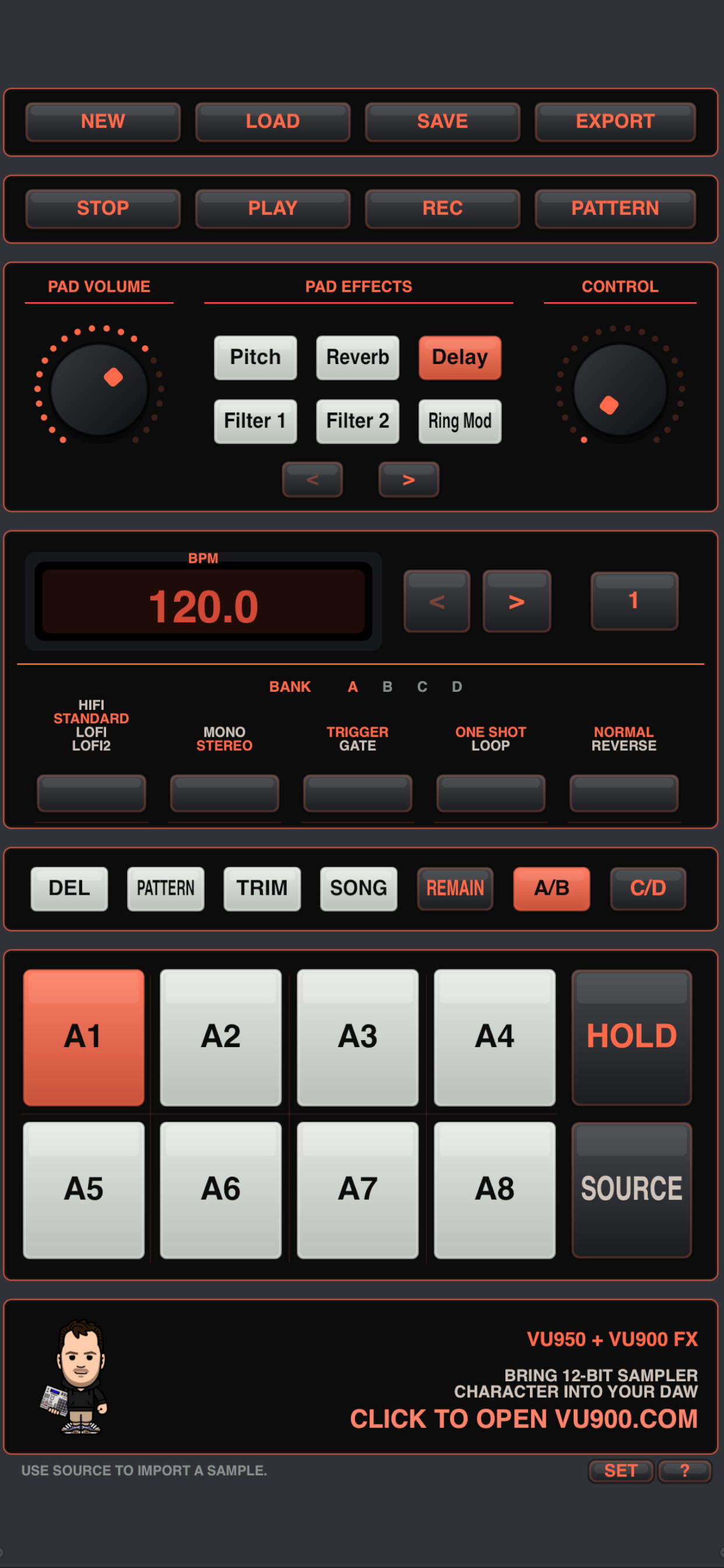
VU202 main screen on iPhone

Main Screen

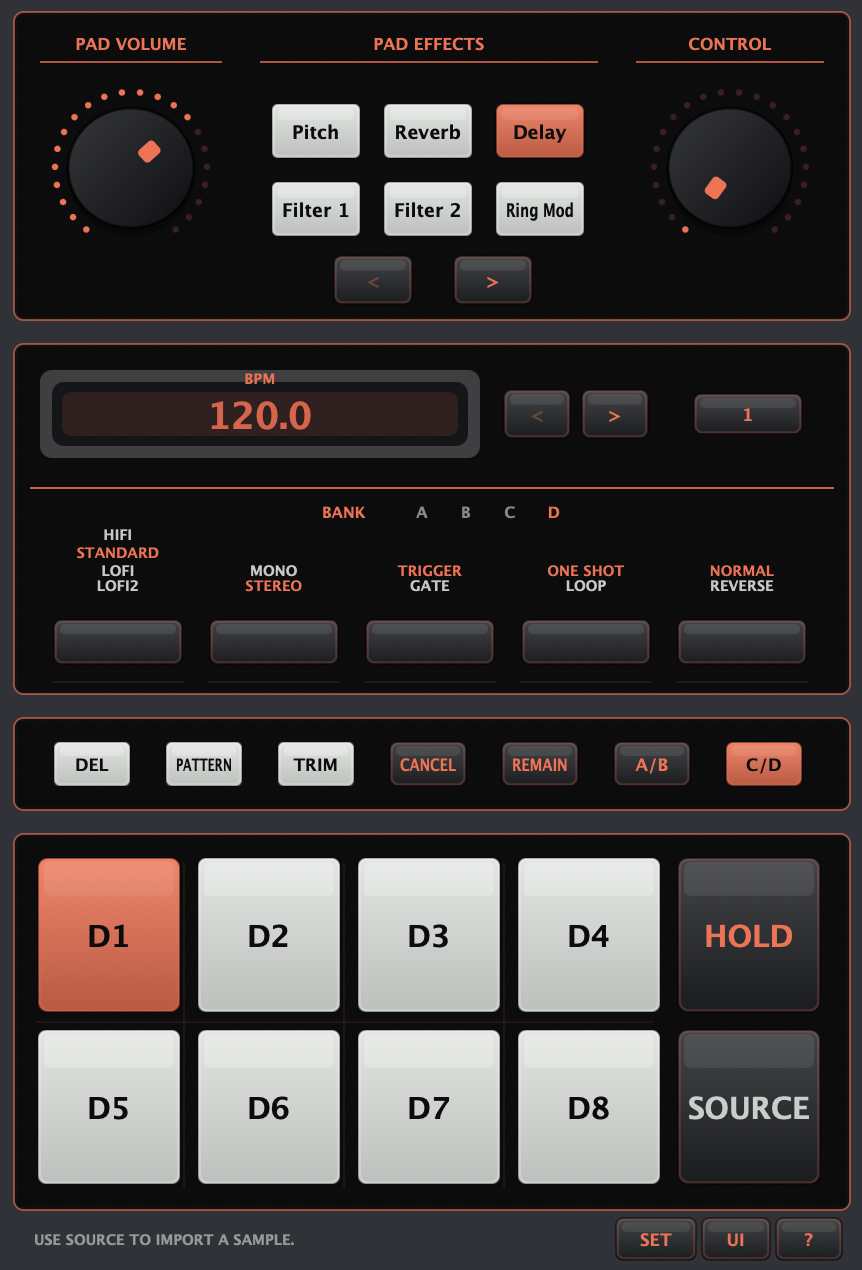
The main screen is where you load sounds, record pads, shape each pad, switch banks, open trim or pattern mode, and trigger samples. The controls below follow the layout shown in the screenshot.

Project Actions

NEW
Create a new project.
LOAD
Load a saved project from the Files app location: On My iPhone or iPad > VU202 > projects.
SAVE
Save the current project and choose its name.
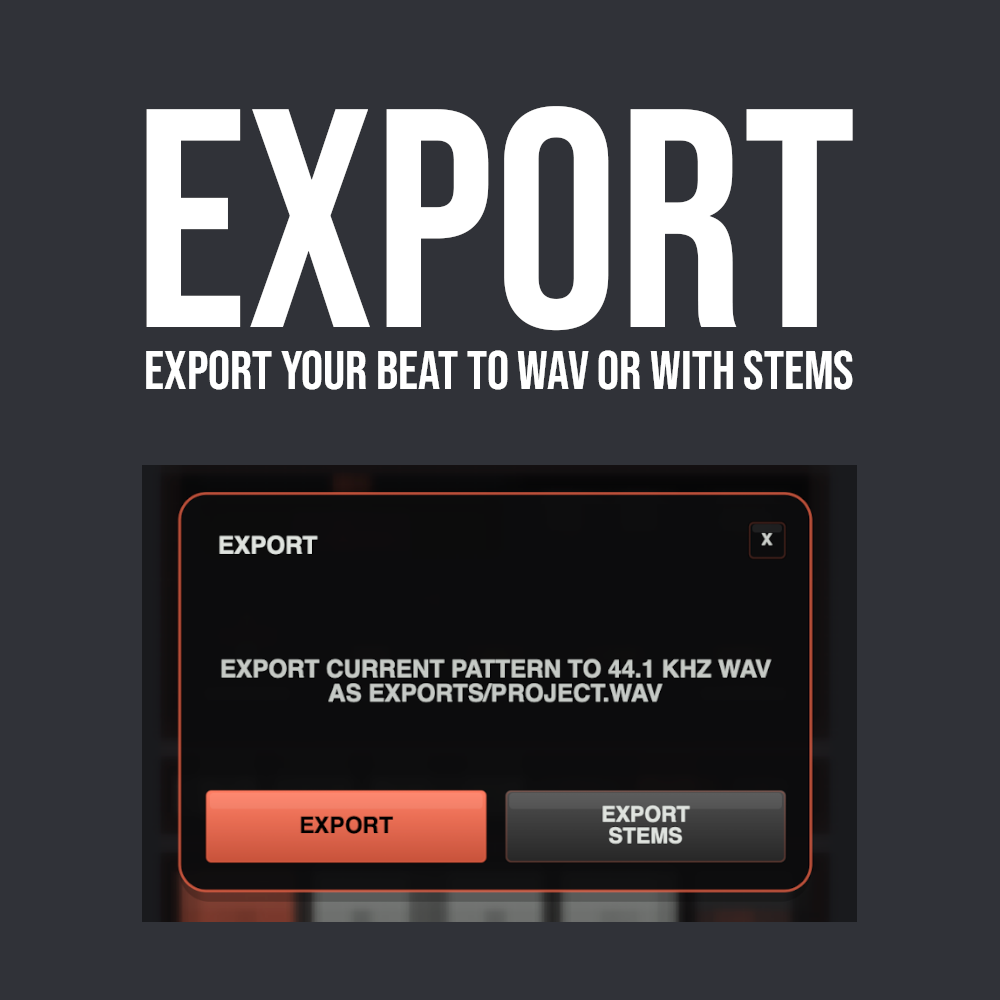
EXPORT
Export the current pattern or song to WAV, or export WAV stems. Only pads with samples used in the current arrangement are exported.

Transport

STOP
Stop playback and return the transport to the beginning.
PLAY / PAUSE
Play the current pattern. When you pause and start again, playback resumes from the position where you stopped.
REC
Arm recording and write played pads into the current pattern.
PATTERN / SONG
Select whether transport should target patterns or song playback. Song playback from this switch is not implemented yet.

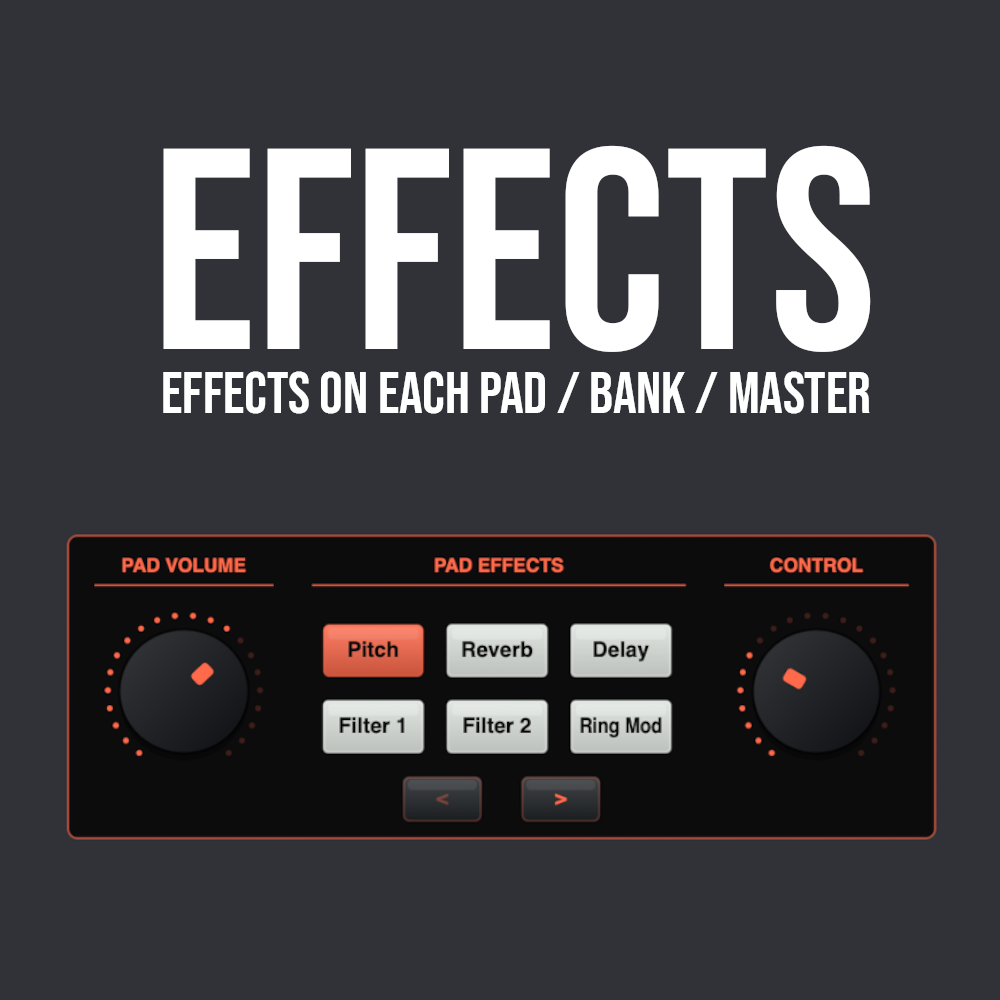
Pad Volume And Effects

Volume
Adjust the volume of the active pad. This is pad volume, not master volume.
Pitch
Change pitch with the control knob. Range: -12 to +12 semitones. Double-tap the control knob to reset pitch.
Reverb
Pad reverb amount. The center position is 0% wet. Double-tap the control knob to reset.
Delay
Enable delay for the active pad, then set the amount with the control knob.
Filter 1
Low-pass filter controlled by the control knob.
Filter 2
Band-pass filter controlled by the control knob.
Ring Mod
Classic ring modulation controlled by the control knob.
VU202 effects controls

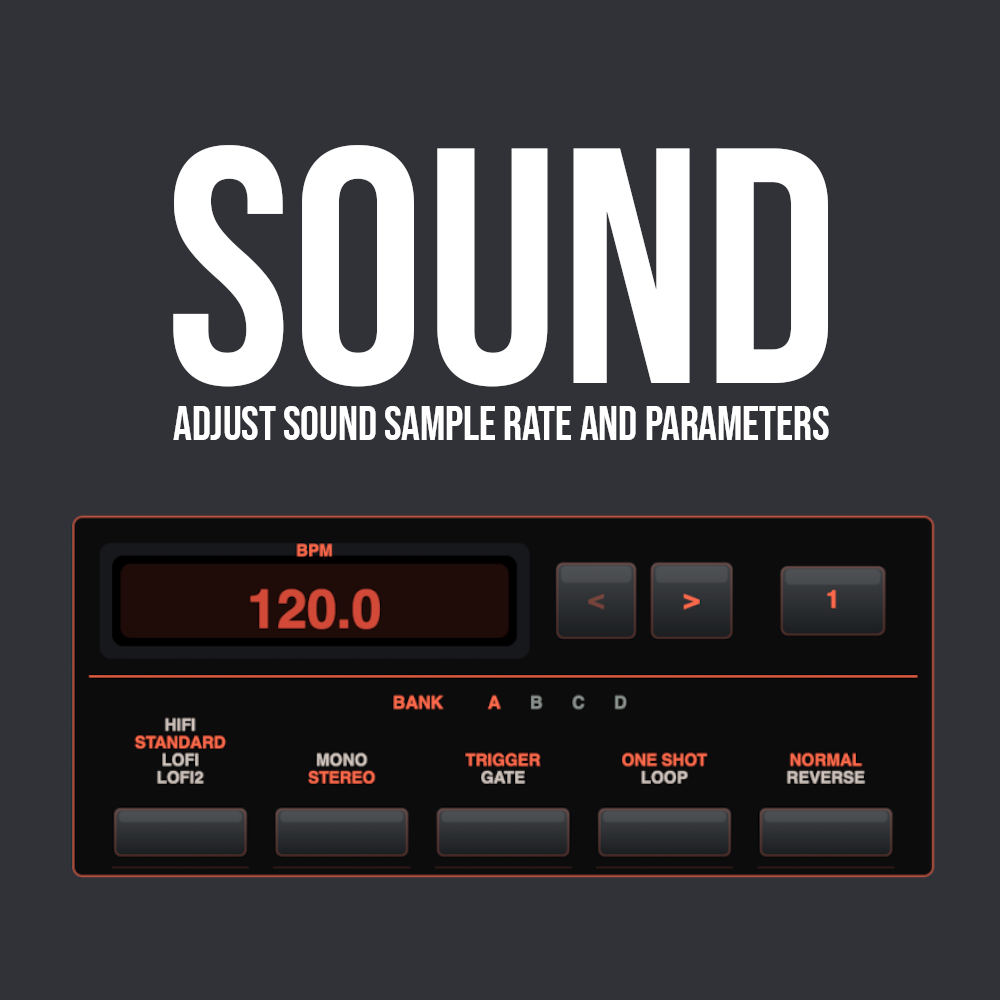
Pattern And Bank Area

BPM
Set BPM for all patterns. Double-tap the digits to change the value.
< >
Change the current pattern. The selected pattern number is shown in the button on the right.
Bank A B C D
Show the current bank. Each bank contains 8 pads for a total of 32 pads.

Active Pad Options

Hifi / Standard / Lofi / Lofi2
Change the sound quality for the active pad.
Mono / Stereo
Switch the active pad sample between stereo and mono. Mono sums left and right together.
Trigger / Gate
Trigger plays the whole sample. Gate plays only while the pad is held.
One Shot / Loop
One Shot plays once. Loop repeats the sample in a loop.
Normal / Reverse
Switch the active sample direction. Reverse can be used even while a sample is already playing.
DEL
Delete the active pad.
PATTERN
Open pattern grid mode.
TRIM
Open trim mode for the active sample.
SONG
Open song mode.
REMAIN
Press REMAIN, then press a pad to change focus without playing sound. Press REMAIN again to cancel.
A/B and C/D
Switch between pad banks. C and D are choke banks.
8 Pads
Play the 8 pads in the selected bank. Four banks of 8 pads give you 32 pads in total.
HOLD
Press HOLD, then press a pad with Gate mode to play it like Trigger.
SOURCE
Open the native browser to pick a sample or video for the active pad.
VU202 pattern and bank controls

Trim Mode

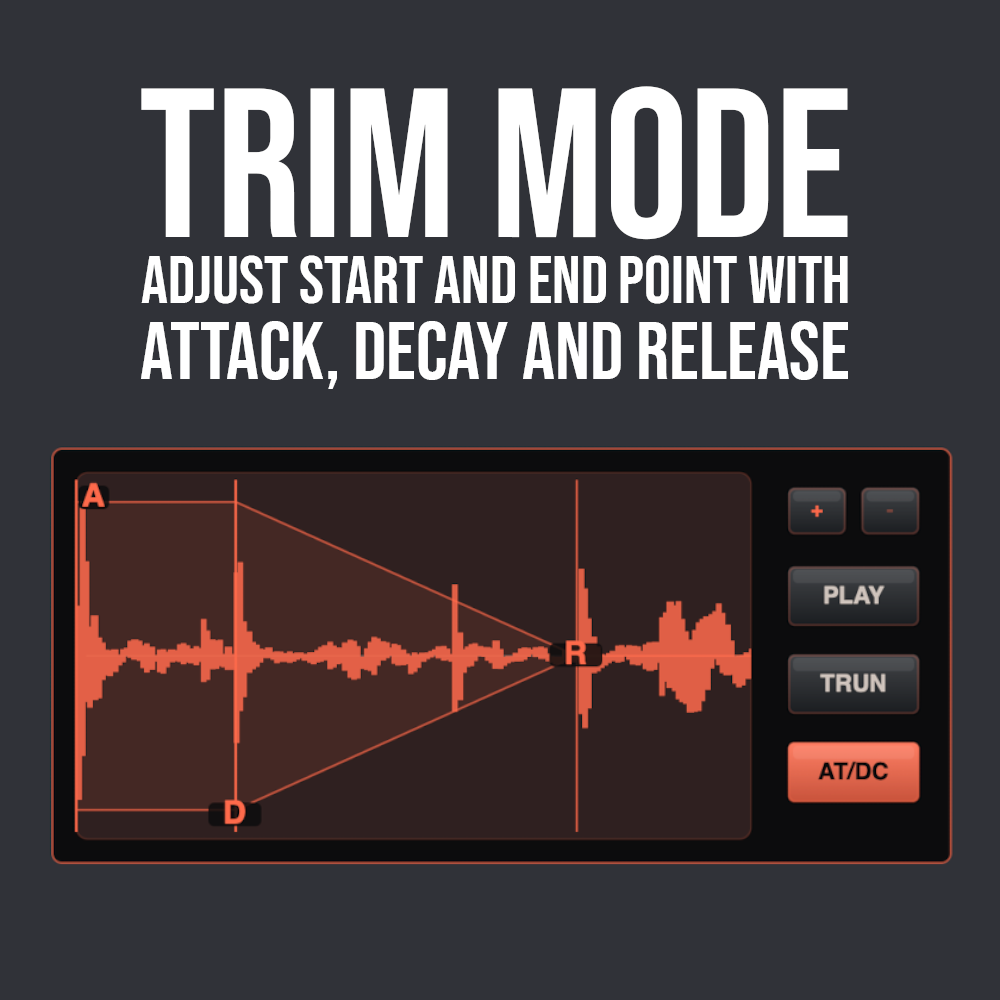
Trim mode is for setting the part of the sample you want to use, previewing it, truncating it, and preparing the pad before chopping.

S
Set the sample start point.
E
Set the sample end point.
+ / -
Zoom in or out. Zoom centers on the last used start or end point. The default focus is the start point.
PLAY
Play the trimmed sample.
TRUN
Truncate the sample.
AT/DC
Enable attack and decay editing. Use the A and D points to shape the sample.
CHOP
Slice the full sample into 8 equal parts and place them across the current bank. Chop ignores the trim start and end points, so truncate first if needed.
Important: Chop removes other samples already stored in that bank and writes the 8 slices to those pads.
Tip: Pad properties such as quality, mono or stereo, and effects are copied to every slice, so set those first before chopping.
VU202 trim mode

Pattern Mode

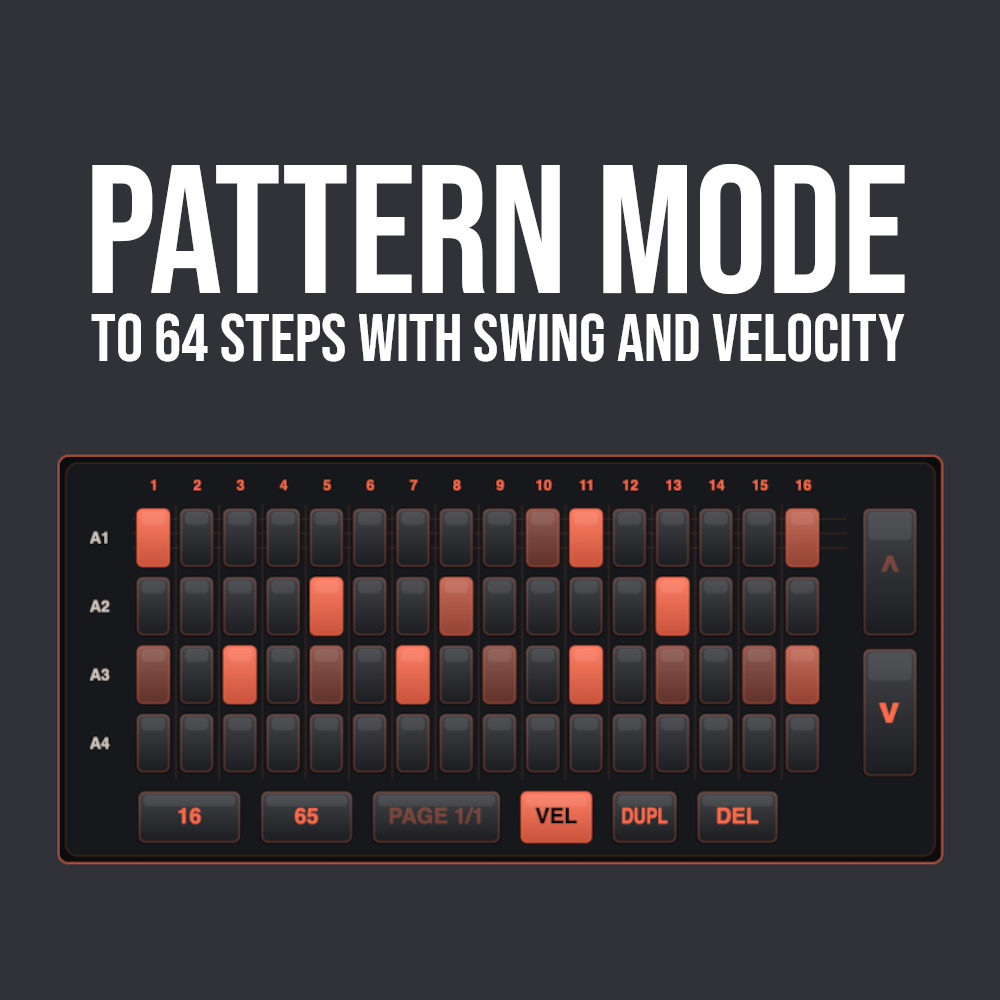
Pattern mode gives you a 4 by 16 step grid for the selected group of pads, with extra pages, swing, velocity and duplication tools.

4x16 Grid
The grid represents 4 pads at a time.
Up / Down Arrows
Move between A1 to A4, A5 to A8, and the equivalent rows in the other banks.
16
Change the number of steps: 16, 32, 48 or 64.
50
Change swing. Available values are 50, 55, 60, 65, 70 and 75.
Page 1/1
Change page when the pattern has more than 16 steps.
VEL
Change step velocity in 3 levels: 100%, 70% and 30%.
DUPL
Duplicate the current pattern into the first empty pattern slot.
Nudge: Press and hold a step to show the nudge bar, then drag left or right to move the step off the grid.
VU202 pattern mode

Song Mode

Song mode lets you arrange patterns into a chain. You choose patterns from the pool, place them into the 16-step song chain, and set repeats for each step.

Pattern Pool
Shows patterns that are already used in the project.
Song Chain
A 16-step chain where you place patterns from the pool.
P- / P+
Select the previous or next pattern for the selected song step.
R- / R+
Decrease or increase the repeat count of the selected step.
DEL
Delete the selected step. Empty steps in the middle are ignored.
VU202 song mode

Settings, Projects And Export

The settings menu controls recording input, zoom and performance behavior. Projects and exports are stored directly in the Files app, so they can be moved between devices.

Settings Menu

Input
Select the microphone or a connected audio interface. If iPhone or iPad does not see the device, VU202 will not see it either.
Zoom
Enable pinch zoom for the app. Use the gesture carefully in areas without buttons.
Low Power
Reduce refresh and repaint activity for older devices.
Banks
Choke mode works per bank. If a bank is set to choke, every pad in that bank will mute the others.
Project Section
Shows the project that is currently open and lets you save as that project or remove it.

File Locations

Projects
Saved in the Files app: On My iPhone or iPad > VU202 > projects. You can move projects between devices.
Export WAV
Export creates a WAV file in On My iPhone or iPad > VU202 > exports.
Export Stems
Export Stems also writes to the exports folder and creates a project-named folder containing separate WAV files for every pad used in any pattern. Choke banks are exported together as one track.
VU202 export dialog